

Assessing Your Team’s Collaboration Needs Within the WordPress Dashboard
Identifying Roles and Responsibilities
Begin by listing all team members who access the WordPress dashboard.
Next, define each person’s role clearly to avoid confusion.
For instance, separate editors, authors, and administrators distinctly.
This clarity helps assign permissions that match each role.
Moreover, it prevents unauthorized access to sensitive settings.
Evaluating Communication Requirements
Consider how your team currently communicates about content and site changes.
Do they use email, chat apps, or dashboard comments?
Integrating communication tools within WordPress simplifies collaboration.
Therefore, assess if native features meet your needs or require plugins.
This step ensures smoother information flow among team members.
Determining Workflow and Approval Processes
Map out how content moves from draft to publication.
Identify if multiple review stages are necessary for quality control.
Some teams may need editors to approve posts before publishing.
Others may prefer direct author publishing with post-publication review.
Understanding this helps choose workflow management tools effectively.
Assessing Plugin and Tool Compatibility
Review existing plugins your team uses for collaboration.
Check if they are compatible with the current WordPress version.
Also, evaluate if these tools support multiple users working simultaneously.
Prevent conflicts by ensuring plugins integrate smoothly within the dashboard.
This assessment safeguards productivity and avoids technical issues.
Understanding Security and Access Controls
Collaboration increases the risk of unauthorized access if unmanaged.
Therefore, determine who can view, edit, or publish different types of content.
Implement role-based access controls tailored to your team’s structure.
Additionally, consider two-factor authentication for enhanced security.
Securing access protects your website’s integrity and data.
Gathering Feedback From Team Members
Engage your team to learn about their pain points and wishes.
Ask about current collaboration challenges within the dashboard.
Also, inquire about features they find useful or missing.
This feedback guides improvements that match your team’s real needs.
Consequently, your optimization efforts become more effective and inclusive.
Transform Your Content Workflow with Draft and Edit
Ready to elevate your WordPress content creation?
Visit
Draft and Edit today and experience the power of AI-driven drafts and seamless collaborative editing.
Join our community to streamline your content process and boost your productivity like never before!
Customizing User Roles and Permissions for Effective Team Management
Understanding WordPress User Roles
WordPress provides predefined user roles to manage access easily.
Each role has specific permissions that dictate user capabilities.
Common roles include Administrator, Editor, Author, Contributor, and Subscriber.
Understanding these roles helps assign proper access levels to your team.
Moreover, proper role assignment improves both security and productivity.
Assessing Your Team’s Needs
Determine what tasks each team member will handle within the dashboard.
This assessment ensures team members only access necessary features.
For instance, marketing staff may need Editor roles to manage content.
Developers usually need Administrator access for technical configurations.
Thus, aligning roles with responsibilities avoids confusion and mistakes.
Modifying Default Roles with Plugins
Use role management plugins to customize permissions precisely.
Plugins like Members by MemberPress allow adding or removing capabilities.
Additionally, PublishPress Permissions can create new user roles from scratch.
These tools offer flexibility beyond WordPress’s default role settings.
Therefore, you can tailor roles to match your team’s unique structure.
Assigning Roles and Managing Permissions
Assign roles thoughtfully during team onboarding to streamline workflow.
Regularly review permissions to maintain security and relevance.
If a team member changes roles, update their permissions immediately.
Furthermore, limit Administrator roles to trusted users only.
This limitation helps prevent accidental or malicious site alterations.
Communicating Role Responsibilities Clearly
Explain to each team member what their role entails.
Clear communication reduces errors caused by misunderstanding permissions.
Create a simple guide detailing permitted actions for each role.
Encourage team members to ask questions if they feel unsure.
Consequently, transparency fosters smoother collaboration in your workflow.
Utilizing Collaboration Plugins to Enhance Communication and Workflow
Choosing the Right Collaboration Plugins
Selecting effective collaboration plugins is essential for optimizing your WordPress dashboard.
These tools improve communication and streamline team workflows significantly.
For example, plugins like Zephyr Project Manager offer task tracking and real-time updates.
Similarly, WP Project Manager focuses on creating shared workspaces and task assignments.
Furthermore, BuddyPress builds social networks within your site for better team interaction.
Transform Your Content Workflow with Draft and Edit
Ready to elevate your WordPress content creation?
Visit
Draft and Edit today and experience the power of AI-driven drafts and seamless collaborative editing.
Join our community to streamline your content process and boost your productivity like never before!
Therefore, evaluate your team’s specific needs before choosing a plugin.
Enhancing Communication within the Dashboard
Collaboration plugins facilitate direct messaging and discussion boards inside WordPress.
Consequently, teams can exchange ideas without leaving the dashboard environment.
For instance, Slack integration plugins enable instant notifications and chat features.
Additionally, plugins like Asana Sync connect project updates seamlessly to your dashboard.
This integration reduces email clutter and speeds up decision-making processes.
Improving Workflow and Task Management
Effective plugins help assign, prioritize, and monitor tasks effortlessly.
They provide clear visibility of each team member’s responsibilities.
Moreover, tools like Kanban boards visualize progress stages clearly.
Such features enhance accountability and reduce bottlenecks in projects.
Finally, automation options trigger notifications and status changes automatically.
Fostering Team Collaboration Culture
Collaboration plugins encourage transparency and open communication paths.
They promote collaboration by allowing file sharing and joint editing.
Also, plugin dashboards offer activity feeds to keep everyone informed continuously.
This visibility helps build trust and a more cohesive team environment.
Consequently, teams work more efficiently and generate better results.
Gain More Insights: Building a Seamless WordPress Workflow for Remote Teams
Setting up Shared Editorial Calendars to Streamline Content Planning
Benefits of Using a Shared Editorial Calendar
A shared editorial calendar improves team communication and transparency.
It helps the marketing team stay aligned on deadlines and content priorities.
Furthermore, it reduces content overlaps and prevents missed publication dates.
Teams can track progress easily and make quick adjustments if necessary.
It creates a centralized hub for everyone involved in content creation.
Choosing the Right Editorial Calendar Tool
Select a tool that integrates seamlessly with your WordPress dashboard.
Consider options like EditFlow, CoSchedule, or WP Project Manager.
Each tool offers unique features tailored to editorial planning needs.
For example, EditFlow provides customizable statuses and editorial comments.
Meanwhile, CoSchedule combines social scheduling with content planning in one place.
WP Project Manager also facilitates task assignments and deadline reminders.
Configuring the Editorial Calendar for Your Team
Setting User Permissions
Assign appropriate roles to team members for content editing and scheduling.
Ensure editors have access to adjust publication dates and add notes.
Transform Your Content Workflow with Draft and Edit
Ready to elevate your WordPress content creation?
Visit
Draft and Edit today and experience the power of AI-driven drafts and seamless collaborative editing.
Join our community to streamline your content process and boost your productivity like never before!
Writers can benefit from access to upcoming assignments and feedback.
Customizing Workflow Stages
Define clear content stages such as drafting, reviewing, and approved.
Use color-coded labels to distinguish each phase visually.
This clarity helps everyone understand content status at a glance.
Adding Content Details and Deadlines
Encourage team members to include relevant post details in the calendar.
This might include author names, target keywords, and publication channels.
Set realistic deadlines to keep the content production on schedule.
Best Practices for Collaborative Content Planning
Hold regular editorial meetings to review the calendar and discuss upcoming posts.
Use the calendar’s comment features to provide feedback directly on assignments.
Encourage open communication to promptly resolve content-related questions.
Continuously update the calendar to reflect changes and new opportunities.
Train new team members on calendar usage to maintain consistency.
Delve into the Subject: Managing Multiple Authors in WordPress: Tips and Tricks
Implementing Real-Time Commenting and Feedback Tools in WordPress
Advantages of Real-Time Collaboration
Real-time commenting accelerates communication among team members.
It reduces the need for lengthy email threads.
Moreover, it brings clarity to content discussions immediately.
This approach encourages faster decision-making.
Ultimately, teams experience improved project efficiency.
Selecting the Right Commenting Tools
Choose plugins compatible with your current WordPress version.
For example, plugins like “WPDiscuz” and “Disqus” offer strong real-time features.
Also, consider tools that allow inline comments for precise feedback.
Ensure the tools support notifications to keep everyone informed.
Additionally, select options with user role management capabilities.
Setting Up Real-Time Commenting Plugins
Begin by installing your preferred commenting plugin from the WordPress repository.
Next, activate the plugin and configure basic settings.
Enable real-time notifications to alert team members instantly.
Customize user permissions to maintain workflow security.
Finally, test the functionality with your team before full deployment.
Integrating Feedback with Project Management
Link commenting tools with project management plugins if available.
This integration centralizes communication and task tracking.
Transform Your Content Workflow with Draft and Edit
Ready to elevate your WordPress content creation?
Visit
Draft and Edit today and experience the power of AI-driven drafts and seamless collaborative editing.
Join our community to streamline your content process and boost your productivity like never before!
For instance, combining with “WP Project Manager” enhances collaboration.
It allows team members to convert comments into actionable tasks quickly.
Thus, feedback directly influences project progress without delay.
Encouraging Effective Use Among Team Members
Train your team on how to use commenting features efficiently.
Encourage clear and constructive comments to maintain professionalism.
Set guidelines on response times to keep conversations active.
Use example cases to demonstrate effective feedback methods.
Regularly review the commenting workflow and implement improvements as needed.
See Related Content: Effective Version Control Techniques for WordPress Editors
Configuring Notifications and Alerts for Team Updates and Tasks
Understanding the Importance of Notifications
Effective notifications keep your team informed in real time.
They prevent missed deadlines and delayed responses.
Therefore, setting up alerts optimizes team collaboration and productivity.
Choosing the Right Notification Channels
WordPress supports various notification channels to suit team needs.
Email alerts remain the most common and reliable method.
Additionally, integrating Slack or Microsoft Teams enhances instant communication.
Push notifications on mobile devices ensure updates are received anywhere.
- Email notifications for task assignments and comments
- Slack or Teams integration for instant alerts
- Mobile push notifications for on-the-go updates
Setting Up Email Notifications within WordPress
Navigate to the dashboard’s notification settings to enable email alerts.
Assign specific notification roles for administrators, editors, and contributors.
Customize email templates to include relevant task details and deadlines.
Using plugins like WP Mail SMTP improves email deliverability.
Integrating Third-Party Communication Tools
Popular plugins allow seamless connections with Slack and Teams.
Authorize your WordPress site to post updates into designated team channels.
This integration supports task updates, comments, and publishing alerts.
It encourages faster responses and transparent communication.
Customizing Alert Preferences for Team Members
Offer team members control over their notification settings.
This customization reduces alert fatigue and enhances focus.
Allow users to subscribe only to relevant task updates or project changes.
For example, Emily from the marketing team may only receive campaign task alerts.
Meanwhile, Lucas from development might get notified about code review tasks.
Monitoring and Improving Notification Effectiveness
Regularly review notification logs to ensure proper delivery.
Transform Your Content Workflow with Draft and Edit
Ready to elevate your WordPress content creation?
Visit
Draft and Edit today and experience the power of AI-driven drafts and seamless collaborative editing.
Join our community to streamline your content process and boost your productivity like never before!
Gather feedback from team members on alert frequency and usefulness.
Refine notification settings based on team collaboration patterns.
Ultimately, continuous improvement boosts overall workflow efficiency.
Delve into the Subject: Improving Content Quality Through Collaborative WordPress Editing
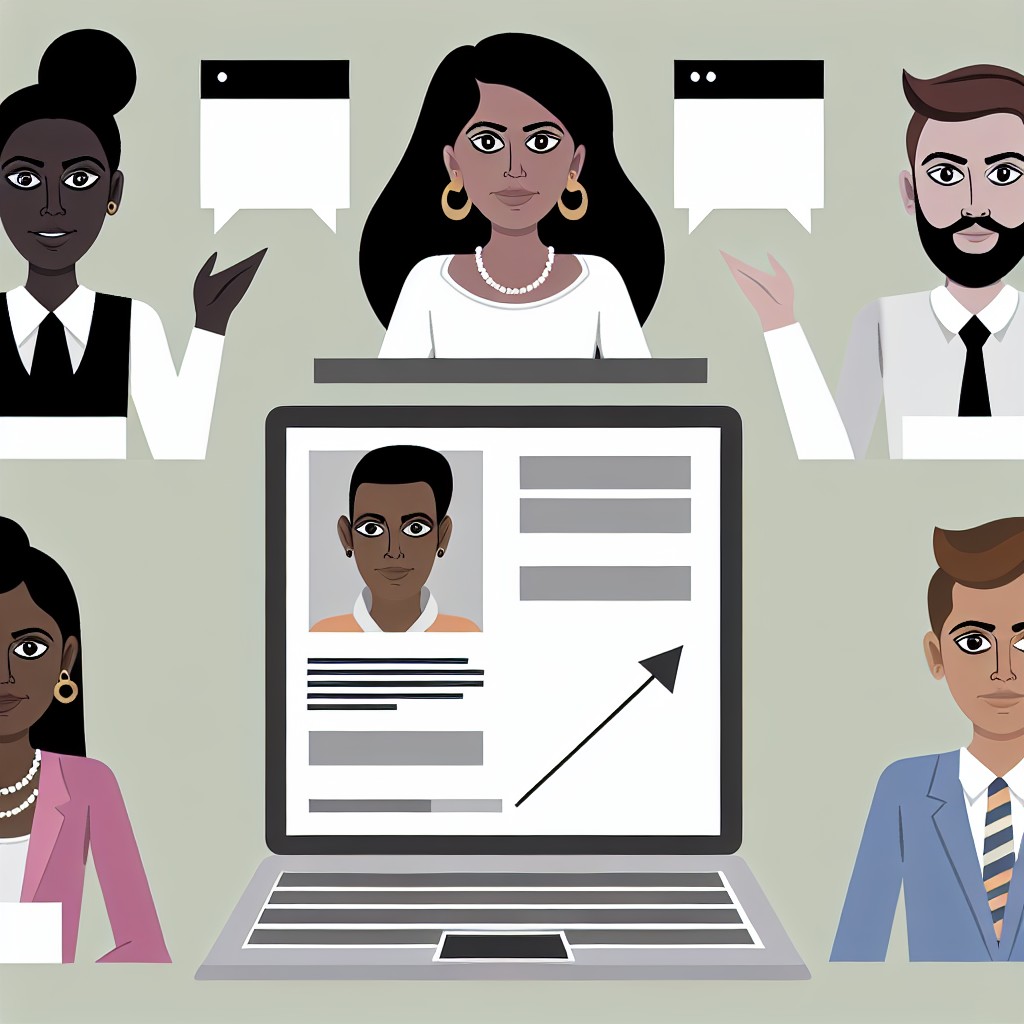
Organizing Dashboard Widgets and Menus for Intuitive Team Access
Customizing Dashboard Widgets for Team Priorities
Begin by identifying the most relevant information each team member needs on the dashboard.
Remove any default widgets that do not add value to your team’s workflow.
Next, add custom widgets that highlight project deadlines, recent content updates, or site analytics.
This focus helps streamline team efforts and reduces unnecessary distractions.
Moreover, assign widget visibility based on user roles to tailor access.
Consequently, this ensures editors, marketers, and developers see only what matters to them.
To achieve this, use plugins like Adminimize or WP Admin UI Customize for easier widget management.
Streamlining Menu Structure for Easy Navigation
Start by organizing menus logically based on your team’s functions.
Group related menu items under clear and concise headings.
For instance, place all content-related pages under a single “Content Hub” menu.
Additionally, reorder menus to prioritize high-use sections for quick access.
Hide rarely used or irrelevant menu items to avoid clutter in the dashboard.
Further, leverage role-based menu controls to limit what each team member can see.
This adjustment helps prevent confusion and accidental changes by less experienced users.
Applying Consistent Naming Conventions and Labels
Use clear and consistent labels for all widgets and menu items to avoid ambiguity.
For example, prefer “Monthly Performance” over vague terms like “Stats.”
Also, update labels when the team’s focus or terminology evolves.
Consistent naming reduces onboarding time and improves collaborative efficiency.
Utilizing Collaborative Tools Embedded in the Dashboard
Integrate communication tools or project management widgets to enhance team collaboration.
Tools like Slack notifications, Trello boards, or Google Calendar widgets keep everyone aligned.
Additionally, make sure these tools are easily accessible from the main dashboard.
This integration reduces the need to switch between platforms during work sessions.
Regularly Reviewing and Updating Dashboard Setup
Schedule periodic reviews of widget and menu configurations with the team.
Gather feedback to identify features that need adjustment or removal.
Regular updates keep the dashboard aligned with evolving team workflows.
Ultimately, this enhances productivity and fosters a more intuitive work environment.
Transform Your Content Workflow with Draft and Edit
Ready to elevate your WordPress content creation?
Visit
Draft and Edit today and experience the power of AI-driven drafts and seamless collaborative editing.
Join our community to streamline your content process and boost your productivity like never before!
Training Team Members on Best Practices for Dashboard Use
Introducing Team Members to the Dashboard
Begin by providing an overview of the WordPress dashboard to new team members.
Clearly explain the purpose of each section and its role in website management.
Use live demonstrations to show common tasks and how to navigate the interface.
This approach helps reduce confusion and builds confidence early on.
Establishing Standard Operating Procedures
Define clear guidelines for dashboard interactions to maintain consistency.
Communicate best practices regarding content creation, editing, and publishing.
Encourage team members to follow naming conventions for posts and pages.
Also, outline steps for managing plugins and themes safely.
Providing Hands-On Training Sessions
Schedule interactive workshops where team members can practice dashboard tasks.
Assign real-life examples such as creating blog posts or updating product pages.
Allow time for questions and troubleshooting during these sessions.
This method reinforces learning and promotes collaborative problem-solving.
Utilizing Documentation and Support Resources
Create detailed guides tailored to your team’s specific dashboard setup.
Include screenshots and step-by-step instructions for common functions.
Recommend official WordPress resources and community forums for extended help.
Ensure documentation is easily accessible for quick reference.
Encouraging Effective Communication
Promote regular feedback about dashboard experiences among team members.
Use collaboration tools like Slack or Microsoft Teams for ongoing support.
Foster a culture where asking for help is welcomed and encouraged.
This practice improves overall productivity and reduces errors.
Assigning Roles Based on Expertise
Identify each member’s strengths and assign dashboard permissions accordingly.
Limit access to sensitive areas to prevent accidental changes.
Train power users to assist others and act as dashboard champions.
Such delegation enhances security and streamlines workflows.
Ensuring Security and Privacy While Facilitating Team Collaboration
Implementing Role-Based Access Control
Use WordPress’s built-in roles to assign permissions appropriately.
This approach limits user capabilities based on their responsibility.
For example, editors manage content without site settings access.
Therefore, fewer security risks arise from accidental configuration changes.
Moreover, plugins like Members by Lisa Sabin-Wilson enhance role customization.
Such tools help tailor permissions precisely to team needs.
Transform Your Content Workflow with Draft and Edit
Ready to elevate your WordPress content creation?
Visit
Draft and Edit today and experience the power of AI-driven drafts and seamless collaborative editing.
Join our community to streamline your content process and boost your productivity like never before!
Securing User Accounts Effectively
Require strong passwords for all team members accessing the dashboard.
Additionally, enforce two-factor authentication for an extra security layer.
Plugins such as Wordfence and Duo Security simplify this process.
Regularly review user accounts and remove inactive ones promptly.
Consequently, reducing unnecessary entry points for attackers.
Protecting Sensitive Content and Data
Restrict access to confidential files and pages using access control plugins.
For instance, Advanced Access Manager offers fine-grained content restrictions.
Always back up your site data before making significant changes.
This practice safeguards your content from accidental loss or breaches.
Encrypt data transmissions by installing an SSL certificate on your server.
Establishing Clear Collaboration Policies
Define team guidelines about acceptable dashboard usage and data handling.
Provide training sessions to ensure every member understands best practices.
Encourage transparent communication about any security concerns or incidents.
Create a shared document highlighting responsibilities and escalation protocols.
Such measures foster a security-conscious team environment.
Monitoring and Auditing Dashboard Activity
Use activity log plugins like WP Activity Log to track user actions.
This logging helps identify unusual behaviors quickly and efficiently.
Schedule regular audits to review access patterns and adjust permissions if needed.
Respond to suspicious activities promptly to minimize potential damage.
By staying vigilant, you enhance both security and collaboration confidence.
Monitoring Team Activity and Progress Through Dashboard Analytics
Tracking Individual Contributions
Effective collaboration depends on understanding who contributes what to the project.
The WordPress dashboard offers tools to monitor each team member’s activities.
For example, Emma Fitzgerald checks post revisions and content updates regularly.
She uses dashboard analytics to track real-time changes without leaving the platform.
This level of transparency helps managers identify strengths and areas needing support.
Utilizing Analytics Plugins for Insights
Installing analytics plugins enhances your dashboard with detailed team performance data.
Plugins like WP Activity Log provide comprehensive logs of user actions.
Consequently, Alejandro Marquez at Luminary Designs uses these logs to audit workflow efficiency.
Dashboard analytics also highlight bottlenecks and inactive phases in content development.
Besides activity tracking, these plugins offer visual reports that simplify progress evaluation.
Transform Your Content Workflow with Draft and Edit
Ready to elevate your WordPress content creation?
Visit
Draft and Edit today and experience the power of AI-driven drafts and seamless collaborative editing.
Join our community to streamline your content process and boost your productivity like never before!
Visualizing Progress with Custom Reports
Custom reports enable teams to visualize milestones and deadlines clearly.
Sarah Klein customizes her dashboard widgets to display project timelines effectively.
Thus, her team stays aligned on delivery dates and task completion rates.
Custom reporting also fosters accountability by showing each member’s progress compared to goals.
Integrating charts and graphs makes it easier to communicate status during meetings.
Collaborative Decision-Making Through Data Sharing
Sharing dashboard analytics improves communication among team members and stakeholders.
It allows Maria Chen’s marketing team to base decisions on concrete performance metrics.
Regularly reviewing the dashboard encourages proactive problem-solving and strategy refinement.
Therefore, it creates a culture of transparency and continuous improvement.
Ultimately, the collective analysis of data strengthens team collaboration and project outcomes.